


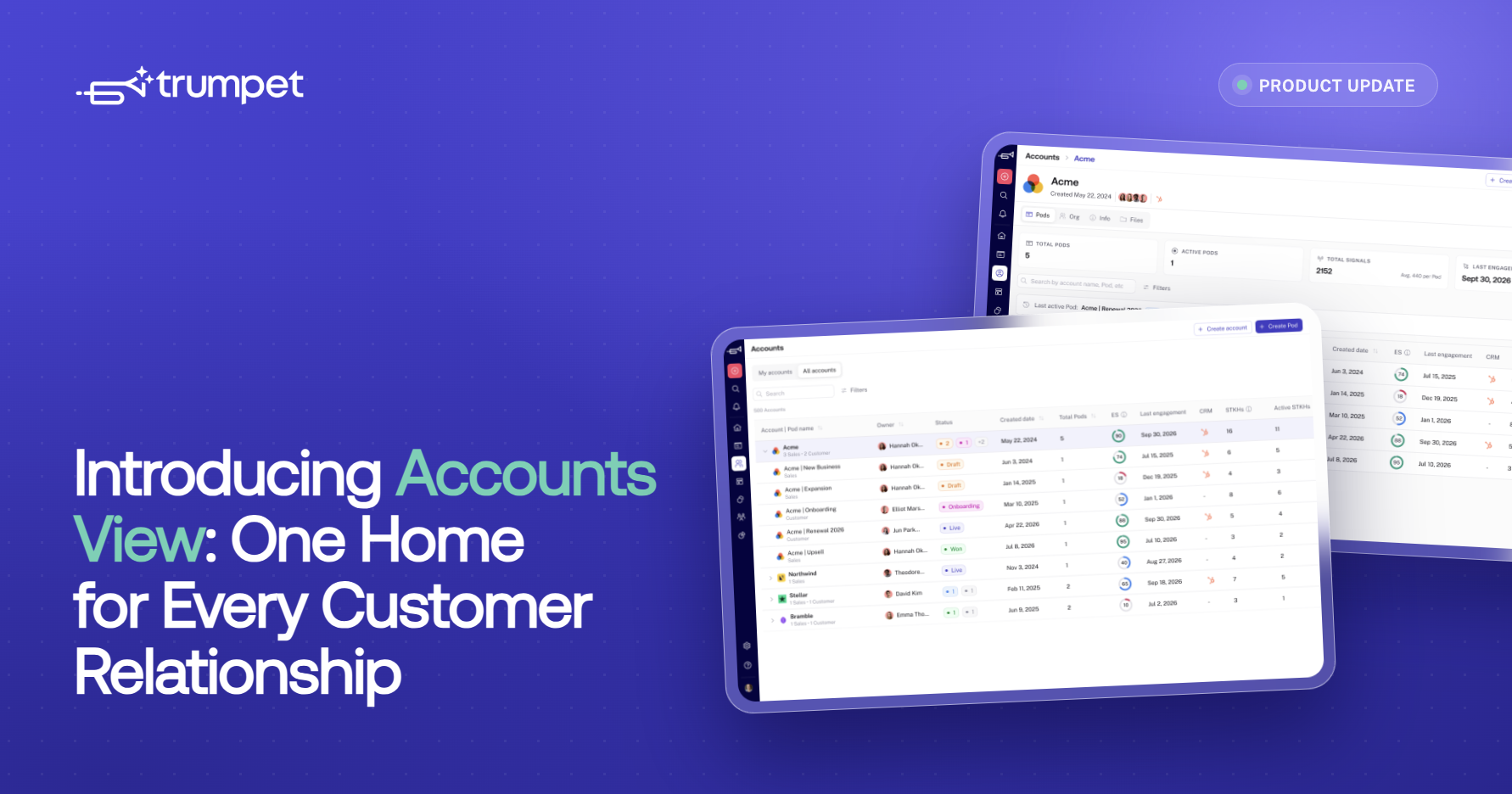





- Accounts View groups every Pod connected to the same company into one Account, giving teams a company-level view above individual Pods.
- The Accounts dashboard brings accounts and Pods together, with search, filters, sorting and dedicated views for My Accounts, My Pods, All Accounts and Archive.
- Each Account has its own Pods, Contacts, Info and Files tabs, keeping customer information together.
- Accounts View is built for the full customer lifecycle, helping Sales and CS carry context from first conversation through onboarding, expansion and renewal.
See every Pod, stakeholder and file connected to a customer in one place, giving Sales and CS a clearer view of the whole relationship.
Customer relationships grow beyond a single deal. There’s onboarding, adoption, expansion, renewal and plenty of new stakeholders along the way. That can mean multiple Pods connected to the same customer, each holding a different part of the relationship.
Accounts View brings it all together.
It adds a new company-level layer to trumpet, grouping every Pod tied to the same customer into one Account. From there, teams can see Pods, contacts, CRM information and files together, giving Sales and CS a clearer picture of the customer from first conversation onwards.
Meet Accounts View
Pods give teams a shared space to collaborate with buyers and customers throughout a deal. But as a customer relationship grows, so does the number of conversations, stakeholders and Pods around it.
A sales Pod might become an onboarding Pod. Later, there could be another for an expansion conversation, a new project or a renewal.
Accounts View gives all of those interactions a home at the account level. Every Pod connected to the same CRM company record can now roll up into a single Account, making it easier to understand the full customer relationship without changing the way you already work inside individual Pods.
One dashboard for your accounts and Pods
The new Accounts dashboard gives you a company-level view of your customer relationships.
You can move between:
- My Accounts
- My Pods
- All Accounts
- Archive
Accounts can be expanded to show the Pods connected to them, helping you move between the big picture and individual conversations quickly.
You can also filter and sort your view, including by Pod type, status and owner, or use engagement data to understand what is happening across your accounts. Sort accounts by owner, created date, Pod count, engagement score or last engagement to get the view you need.
Need to find something quickly? Search by account name, CRM record or company domain.
Everything connected to the customer, in one Account Page
Open an Account and you’ll find a dedicated space containing everything connected to that customer. Each Account Page includes Pods, Contacts, Info and Files, alongside account details and the people already working with that customer.
At the top, you’ll see the company name and logo, account owner and an automatically populated Account Collaborators view of everyone who has owned or worked on a Pod connected to the account.
Pods
The Pods tab brings every Pod connected to the account into one view.
You can see your familiar Pod information and stats, with visibility into the most recently active Pod so you can jump straight into the conversation that matters. Filter Pods by status, type or owner, and click straight through into the Pod editor when you need to take a closer look.
Whether the account is in onboarding, running an expansion project or approaching renewal, the history stays connected.
Contacts
The Contacts tab gives you a master view of the stakeholders involved across the entire account.
Instead of seeing contacts only within an individual Pod, Accounts View brings those relationships together in one place.
You can view stakeholders through an Org Chart or Table view and filter the information to focus on specific Pods, statuses or owners. The Table view also surfaces details including each contact’s last viewed date and total Signals.
That gives AEs, CSMs and account owners a much clearer picture of who has been involved throughout the relationship, not just who appears in the latest conversation.
A master org chart for the whole relationship
Customer relationships evolve, new champions appear, senior stakeholders join conversations and different departments get involved as the relationship grows. Accounts View brings those connections together into a master org chart across the Account.
For a CSM taking over after a deal closes, that means visibility into the people sales already engaged.
For an account owner looking at expansion, it gives a broader view of existing relationships and where there could be opportunities to build new ones.
And when renewal comes around, you have the stakeholder history already there.
Account information from your CRM
The Info tab brings CRM account information into trumpet, keeping important company context alongside your Pods and customer activity.
CRM fields can be mapped into the Account, giving teams one place to understand both the customer and the conversations happening around them. There’s also a Company info area ready for future firmographic account data.
Because Accounts View uses the company record in your CRM to connect Pods, new Pods can automatically attach to the right Account.
Existing Pods are linked back to their Accounts too, so your current customer relationships become part of Accounts View automatically rather than starting from zero. And if a Pod ever needs to sit under a different Account, it can be moved manually.
One file library per account
A customer relationship builds up a lot of important context over time. Proposals, onboarding resources, security documents, business cases, training material, presentations and customer uploads can all be shared at different stages.
The Files tab brings files from across every Pod connected to an Account into one aggregated, read-only library.
That gives teams a simple way to see what has already been shared throughout the relationship, along with details such as where a file came from and when it was added. You can filter files by Pod, status or owner, with the uploader, date and source Pod shown for each file.
So when a customer moves from sales into onboarding, or from an existing contract into renewal, the resources that came before stay easy to find.
Introducing Customer Pods
Accounts View also launches alongside Customer Pods, giving post-sale teams a way to describe customer relationships in language that fits their day-to-day work.
Customer Pods can use statuses including:
Onboarding → Live → Renewal → Renewed → Churned
These sit alongside the existing Sales Pod statuses, giving post-sale teams their own lifecycle language while keeping the familiar Pod experience underneath.
The Pod experience itself stays familiar, but teams now have a clearer way to show where a customer is in their lifecycle.
Together, Accounts View and Customer Pods help trumpet support more of the relationship after the first deal closes.
Built for the whole customer lifecycle
Accounts View gives Sales and CS a shared picture of the customer, even as the relationship moves through different stages.
An AE can close a deal and hand over an Account with the original sales context already there.
A CSM starting onboarding can see the Pods, stakeholders and files that came before.
Before a renewal, teams can look across the wider account instead of viewing the renewal conversation in isolation.
And revenue leaders can step back from individual Pods and understand activity across their accounts at a broader level.
It creates continuity from the first sales conversation through to onboarding, expansion and renewal.
Where Accounts View fits into your day
Smoother Sales to CS handovers
A deal closes and the account moves into onboarding.
The CSM can open the Account and immediately see the Sales Pods, stakeholders and files already connected to the customer, helping them start the next stage with more context.
Better renewal preparation
When renewal comes around, CSMs can look at the wider customer relationship rather than only the newest Pod.
They can see who has been involved across the account, revisit previously shared resources and understand how the relationship has developed.
A clearer view of account relationships
For customers with several Pods, Accounts View gives account owners and leaders a company-level view of what is happening.
That can make it easier to see active conversations, understand stakeholder coverage and spot where there may be opportunities to grow the relationship.
For CS and Sales leaders reviewing their wider book, engagement score and Last active Pod can also help surface accounts where engagement has started to slow, giving teams useful context ahead of account health and renewal conversations.
FAQs
What is Accounts View in trumpet?
Accounts View is a company-level view that groups Pods connected to the same customer into one Account. It gives teams one place to see Pods, contacts, CRM information and files across the customer relationship.
How does trumpet know which Pods belong to an Account?
Accounts View uses the company record connected through your CRM to match Pods with the right Account. This means new Pods can be associated automatically, while existing Pods are linked back to their Account too. Pods can also be moved manually if needed.
What can I see inside an Account?
Each Account Page includes dedicated Pods, Contacts, Info and Files areas, alongside account details and collaborators connected to that customer.
What is the Accounts dashboard?
The Accounts dashboard gives you an overview of your customer accounts and their connected Pods. You can move between My Accounts, My Pods, All Accounts and Archive, as well as search, filter and sort the information.
Can I see stakeholders from multiple Pods together?
Yes. Accounts View brings contacts from across an Account into a master org chart, helping you see stakeholder relationships across multiple Pods and stages of the customer lifecycle. You can also switch to a Table view to see information including last viewed date and total Signals for each contact.
What information appears in the Files tab?
The Files tab aggregates files shared across the Pods connected to an Account into one read-only library, making resources from across the relationship easier to find. Files can be filtered by Pod, status or owner, with uploader, date and source Pod information available too.
What are Customer Pods?
Customer Pods are designed for post-sale customer relationships and introduce statuses such as Onboarding, Live, Renewal, Renewed and Churned. They sit alongside the existing Sales Pod statuses.
Who is Accounts View most useful for?
Accounts View is especially useful for CSMs, account owners and Sales or CS leaders managing customer relationships with multiple Pods, stakeholders or stages. For accounts that only ever use a single, one-off Pod with no ongoing relationship, an account-level view may be less relevant.







![How to Get Started with Buyer Enablement [With Examples]](https://cdn.prod.website-files.com/65cf4fecbed2754c2236665d/65cf4fecbed2754c22366bdb_65a5af83e742f76e34ce06f3_Customer%2520Onboarding%2520_%2520Everything%2520you%2520need%2520(2).png)
.png)


.png)


.png)


.png)

.png)

.png)
.png)





